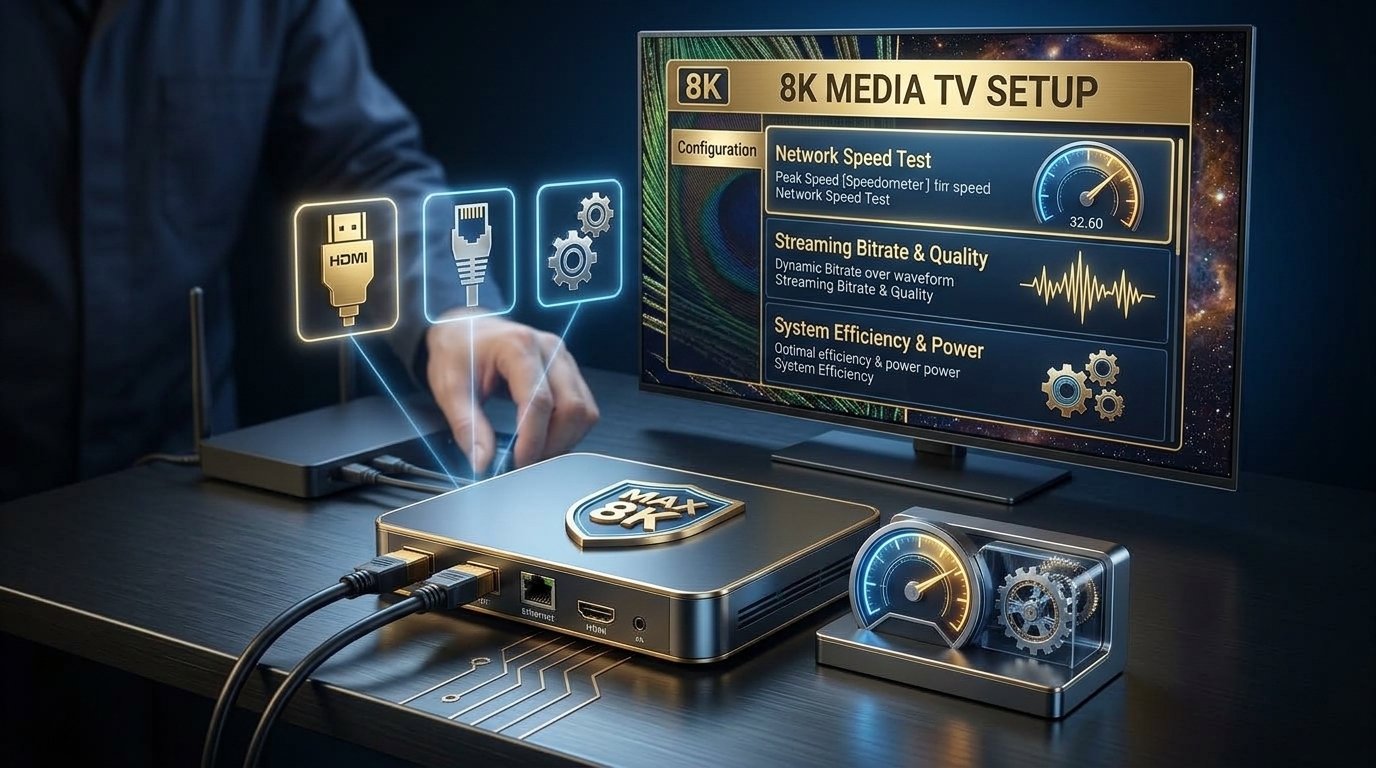
Why Setup Matters More Than Hardware
You bought a premium 8K media TV box. But out of the box, it's configured for general use — not for 8K media TV streaming.
This guide walks you through the exact configuration steps that transform any 8K device from "average" to "exceptional" for IPTV. For a full review of what an 8K media TV box actually is, read our S905X5 Complete Guide.
📋 What You'll Learn
- Physical connection best practices
- Android TV OS settings for 8K
- IPTV player configuration
- Network optimization for buffer-free streaming
- Advanced tuning for peak performance
Step 1: Physical Setup (Before You Power On)
1.1 Choose the Right HDMI Port on Your TV
Not all HDMI ports are equal. For 8K media TV streaming, you must use an HDMI 2.1 port that supports 48 Gbps bandwidth. Check your TV's manual — the port is often labeled "8K" or "HDMI 2.1".
1.2 Use a Certified HDMI 2.1 Cable
The cable that came with your device might be HDMI 2.0. For 8K media TV, you need an HDMI 2.1 cable. Look for "Ultra High Speed" certification on the packaging.
1.3 Connect Ethernet (Not Wi-Fi)
This is non-negotiable for 8K media TV. Wi-Fi cannot sustain the bandwidth needed. Plug an Ethernet cable directly into the box's RJ45 port.
⚠️ No Ethernet Port? Some 8K media TV boxes lack Ethernet. Buy a USB-to-Gigabit-Ethernet adapter ($15-20). This single upgrade solves 70% of buffering issues.
Step 2: Initial Android TV Configuration
1 Complete the Setup Wizard: Language, Wi-Fi (even if using Ethernet for backup), Google Account, Date/Time.
2 Update the OS: Settings → About → System Update. Update to the latest Android version (14+ recommended).
3 Set Display Resolution to 8K: Settings → Display & Sound → Resolution → Select 7680×4320 @ 60Hz (or the highest available).
4 Enable HDR: Settings → Display & Sound → HDR → Set to "Auto" or "Always On".
5 Disable Sleep Mode: Settings → System → Power & Energy → Sleep → Set to "Never" (to avoid interruptions during long matches).
Step 3: Install the Right IPTV Player
For 8K media TV performance, the IPTV player matters as much as the hardware. Our top recommendations:
- TiviMate — Best overall. Read our TiviMate Installation Guide.
- IPTV Smarters Pro — User-friendly alternative.
- VLC Media Player — Simple and free.
📖 Read Also:
For the best IPTV subscription to pair with your setup, read our Best 8K IPTV Streaming Service 2026.
Step 4: Configure IPTV Player Settings for 8K
Now the critical part — the settings that separate average streams from 8K media TV quality.
4.1 Enable Hardware Decoding
TiviMate → Settings → Playback → Hardware Decoder → ON
This offloads video processing to your device's GPU, enabling smooth 8K playback.
4.2 Increase Buffer Size
TiviMate → Settings → Playback → Buffer Size → "Very Large" (10-15 seconds)
Pre-loads more video data, preventing interruptions.
4.3 Enable Auto Frame Rate
TiviMate → Settings → Playback → Auto Frame Rate → ON
Matches the source FPS, eliminating judder during fast motion.
4.4 Set User Agent (If Streams Don't Play)
TiviMate → Settings → Playlist → User Agent → "IPTVSmarters"
Some providers require this to authorize playback.
Step 5: Network Optimization
5.1 Enable QoS on Your Router
Log into your router (usually 192.168.1.1) and enable Quality of Service (QoS). Prioritize your 8K media TV box's MAC address for the highest bandwidth priority.
5.2 Test Your Speed (Correctly)
Test at 8 PM on a weekday using fast.com. You need 100+ Mbps sustained for 8K media TV streaming.
5.3 Consider a VPN
If your ISP throttles during peak hours, a VPN can prevent it. But choose a nearby server to avoid adding latency. Read our IPTV Buffering Fix Guide.
Step 6: Advanced Tuning
6.1 Disable Background Processes
Settings → Apps → See all apps → Disable unnecessary pre-installed apps (Netflix, Prime Video if you don't use them). This frees up RAM and reduces background bandwidth usage.
6.2 Set Up a Custom Launcher
Install a lightweight launcher (like Projectivy Launcher or ATV Launcher) to replace the default. This improves boot time and reduces resource usage.
6.3 Enable Developer Options
Settings → About → Build → Tap 7 times. Then go to Developer Options → Limit background processes to 2. This prevents apps from competing for RAM.
6.4 Use External Storage
If your 8K media TV box has USB ports, add a USB 3.0 flash drive for cache and recordings. This reduces internal storage pressure.
Step 7: Verify Your 8K Setup
After all configurations, verify everything is working:
- Play an 8K test video from YouTube (search "8K HDR 60fps")
- Press the Info button on your TV remote — it should show "7680x4320"
- Test during peak hours (8-10 PM weekdays)
- Check your IPTV subscription — test with a 4K channel first, then an 8K channel
If you need a premium 8K IPTV subscription for testing, read our 8K IPTV Free Trial Guide.
Common 8K Media TV Setup Mistakes
- ❌ Using Wi-Fi for 8K streaming
- ❌ Not enabling hardware decoding in the player
- ❌ Using the HDMI cable in the box (usually HDMI 2.0)
- ❌ Forgetting to update the Android OS
- ❌ Not disabling sleep mode (interrupts long streams)
- ❌ Ignoring the buffer size setting
- ❌ Not testing at peak hours (misleading results)
Which 8K Media TV Box Should You Buy?
If you're still shopping for a device, here are our top picks:
- Compare the top 5 in our Best 8K Media TV Boxes 2026
- See the Top S905X5 Android TV Boxes
- Compare the S905X5 vs S905X4
- See the S905X5 vs Z1 IPTV comparison
- Check the Z1 Max 8K Ultra HD Review
- Compare the Amlogic S905X5M vs S905X5 vs S905X
🚀 Get the Ultimate 8K Media TV Experience
Pair your 8K media TV box with iPTV8KMax for true 8K streaming with H.266 support. Plans from $49/year.
⭐ Get iPTV8KMax Now → 💬 Free Trial on WhatsApp →Frequently Asked Questions
What is the best 8K media TV box in 2026?
The best 8K media TV box uses the Amlogic S905X5 chip. See our Best 8K Media TV Boxes guide.
Do I need Ethernet for 8K media TV?
Yes. Wi-Fi cannot reliably sustain the bandwidth needed for 8K. Always use Ethernet.
What speed do I need for 8K media TV?
100 Mbps sustained minimum. Test at 8 PM on a weekday.
Which IPTV player is best for 8K media TV?
TiviMate is the best. Read our TiviMate Guide.
How do I know if my 8K media TV is working?
Press Info on your TV remote during playback. It should display "7680×4320" or "8K".
Conclusion
Setting up an 8K media TV box for optimal performance requires more than plugging it in. By following the 7 steps in this guide — from HDMI 2.1 cables to IPTV player settings — you'll unlock the true potential of your device.
For more technical guides, read our Max 8K Streaming Optimization Guide. And for hardware reviews, see our Best 8K Media TV Boxes 2026.