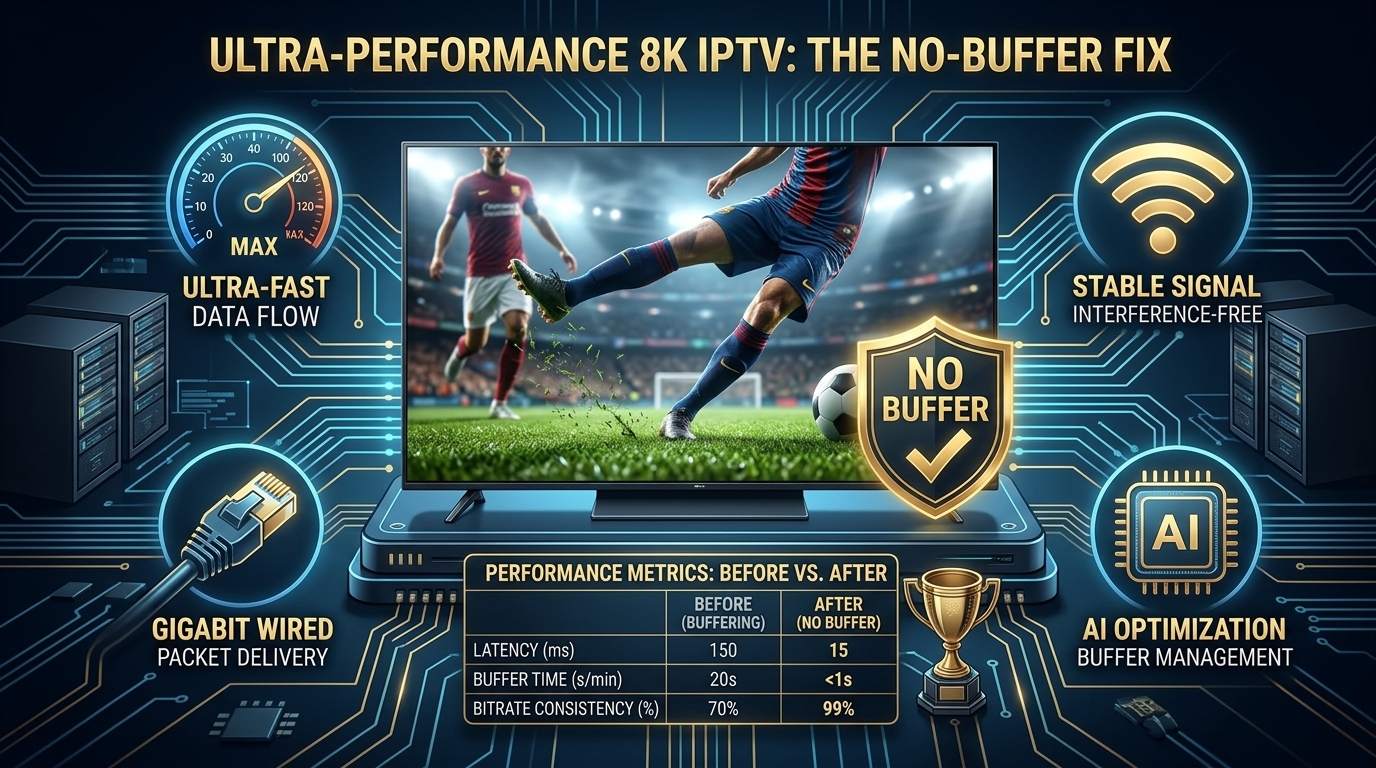
Why IPTV Buffering Happens During 8K Streaming
8K streaming is demanding. It requires 50-100 Mbps of sustained bandwidth, a powerful processor, and a stable connection. When any of these fails, buffering occurs.
The most common causes of IPTV buffering are:
- Weak Wi-Fi signal
- ISP throttling
- Insufficient buffer size in your player
- Outdated or underpowered hardware
- Overloaded network during peak hours
📖 Read Also:
If your hardware is the problem, check our S905X5 Complete Guide for the best chip for 8K streaming.
Fix #1: Use Ethernet Instead of Wi-Fi
This is the single most effective fix for IPTV buffering. Wi-Fi is vulnerable to interference from walls, microwaves, and neighbors' networks. A wired Ethernet connection provides consistent, dedicated bandwidth.
✓ Solution: Connect your streaming device to your router with an Ethernet cable. If your device lacks an Ethernet port, buy a USB-to-Ethernet adapter ($15-20).
Fix #2: Increase Buffer Size in Your IPTV Player
Most IPTV players allow you to adjust the buffer size. Increasing it pre-loads more video data, smoothing out temporary speed drops.
✓ Solution: In TiviMate or IPTV Smarters, go to Settings → Playback → Buffer Size → Set to "Very Large" or 10-15 seconds.
Fix #3: Enable Hardware Decoding
Hardware decoding offloads video processing to your device's GPU, reducing CPU load and improving performance.
✓ Solution: In your IPTV player settings, enable Hardware Decoder or Hardware Acceleration.
To fully benefit from hardware decoding, you need a device with a powerful GPU. The S905X5 is the best choice for 8K. Compare it with the S905X4 or S905X5M if you're on a budget.
Fix #4: Use a VPN to Prevent ISP Throttling
Many ISPs intentionally slow down streaming traffic. A VPN encrypts your traffic, preventing throttling.
✓ Solution: Use a reliable VPN like ExpressVPN or NordVPN. Connect to a server in a country with fast internet.
Fix #5: Upgrade to a Device with H.266 Support
If your device doesn't support H.266 (VVC), 8K streams require much more bandwidth. H.266 cuts bandwidth requirements by 50%.
✓ Solution: Upgrade to a device with the S905X5 chip. Learn more about H.266 in our VVC H.266 Guide.
Fix #6: Close Background Apps
Background apps consume RAM and bandwidth. Close them before streaming.
✓ Solution: On Firestick, double-click the Home button and close unused apps. On Android TV, go to Settings → Apps → Close All.
Fix #7: Check Your Internet Speed
Test your internet speed during peak hours (8-10 PM). For 8K streaming, you need 50-100 Mbps sustained.
⚠️ Important: Speed tests during off-peak hours are misleading. Always test at 8 PM on a weekday to see your real speed.
Fix #8: Choose the Right IPTV Provider
Not all IPTV providers are equal. Some have overloaded servers that cause buffering during peak hours.
Choose a provider with:
- Multi-CDN infrastructure for load balancing
- Anti-buffer technology
- 99.9% uptime guarantee
- Dedicated 8K streams
For the best IPTV fast 8K experience, we recommend iPTV8KMax. It offers true 8K streaming with buffer-free performance.
📊 Compare Providers:
Read our Best 8K IPTV Subscription 2026 guide to find the right provider.
Fix #9: Test Before Committing
Always test an IPTV service before paying. Read our guide: How to Get an 8K IPTV Free Trial.
Fix #10: Optimize Your Router Settings
Your router plays a critical role in streaming stability. Here's how to optimize it:
- Enable QoS (Quality of Service): Prioritize your streaming device
- Use 5GHz Wi-Fi: If you must use Wi-Fi, use the 5GHz band
- Update Firmware: Ensure your router has the latest firmware
- Restart Weekly: Reboot your router once a week
Troubleshooting Checklist
- ✅ Use Ethernet connection
- ✅ Increase buffer size to "Very Large"
- ✅ Enable hardware decoding
- ✅ Use a VPN
- ✅ Upgrade to S905X5 if needed
- ✅ Close background apps
- ✅ Test internet speed at peak hours
- ✅ Choose a reliable IPTV provider
- ✅ Test before subscribing
- ✅ Optimize router settings
🚀 Experience Buffer-Free 8K IPTV Today
Stop dealing with buffering. Get iPTV8KMax for the ultimate IPTV fast 8K experience with zero interruptions.
⭐ Get iPTV8KMax Now → 💬 Free Trial on WhatsApp →Frequently Asked Questions
Why does my 8K IPTV keep buffering?
Common causes include weak Wi-Fi, insufficient buffer size, ISP throttling, and outdated hardware. Follow the fixes above.
What internet speed do I need for 8K IPTV?
For true 8K, you need 50-100 Mbps sustained. Use Ethernet for best results.
Does a VPN help with IPTV buffering?
Yes! A VPN prevents ISP throttling, which is a leading cause of buffering.
What is the best device for 8K IPTV?
Devices powered by the Amlogic S905X5 offer the best 8K performance.
Conclusion
IPTV buffering is frustrating, but it's fixable. By following the 10 fixes above—especially using Ethernet, increasing buffer size, and upgrading to a device with H.266 support—you can eliminate buffering and enjoy true IPTV fast 8K streaming.